See also: Health Check: Algorithm, General Description
Connection Statuses
There are three connection statuses related to receiving and sending messages.
No internet connection is reported by the OS (no network, Wi-Fi, etc.). In Health Check, No active nodes may actually mean there is no internet connection.
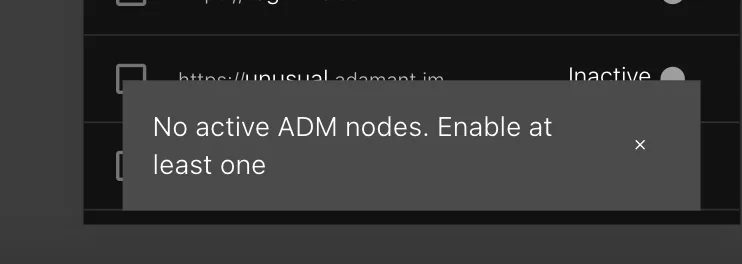
No active/available ADM nodes applies when at least one ADM node is enabled but no nodes are in Active status. The same logic applies to coins and services (e.g., No active BTC services). Unsupported nodes do not count.
No enabled ADM nodes occurs when a user has disabled all nodes. Unsupported nodes do not count here either; there may be nodes in Unsupported status, but the status remains No enabled nodes.
Priority of Checks
Checks are evaluated in order: first No internet connection, then No active/available ADM nodes, then No enabled ADM nodes.
Specific Cases
General Snackbar
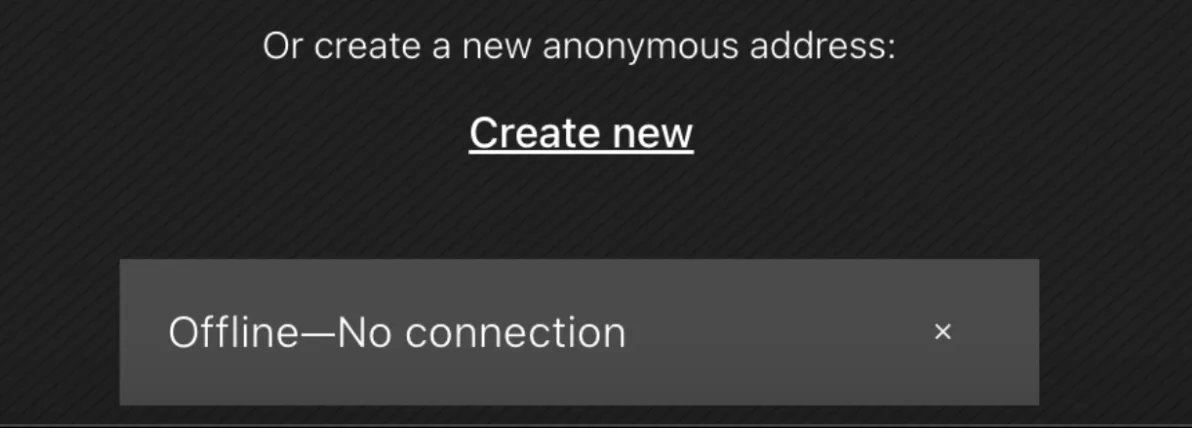
The general snackbar appears only for No internet connection. It is persistent (shown until the user closes it or the connection restores) and triggers an attention vibration.
In-chat Warning Popup
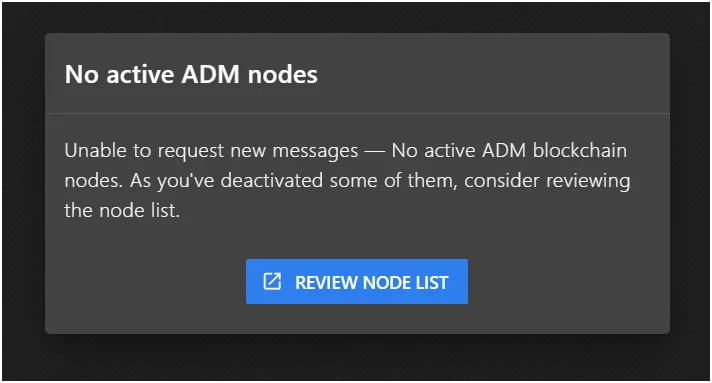
The in-chat warning popup appears for No enabled ADM nodes when the connection is alive, no ADM nodes are available, and the user has at least one manually disabled node. It is persistent and triggers an attention vibration.
General Updating Spinner
The general updating spinner (shown in the header area, indicating that data/messages are not current) appears for all connection statuses. This includes the Delegates screen, the Wallets screen, and any nodes screen. It is persistent and does not trigger vibration.
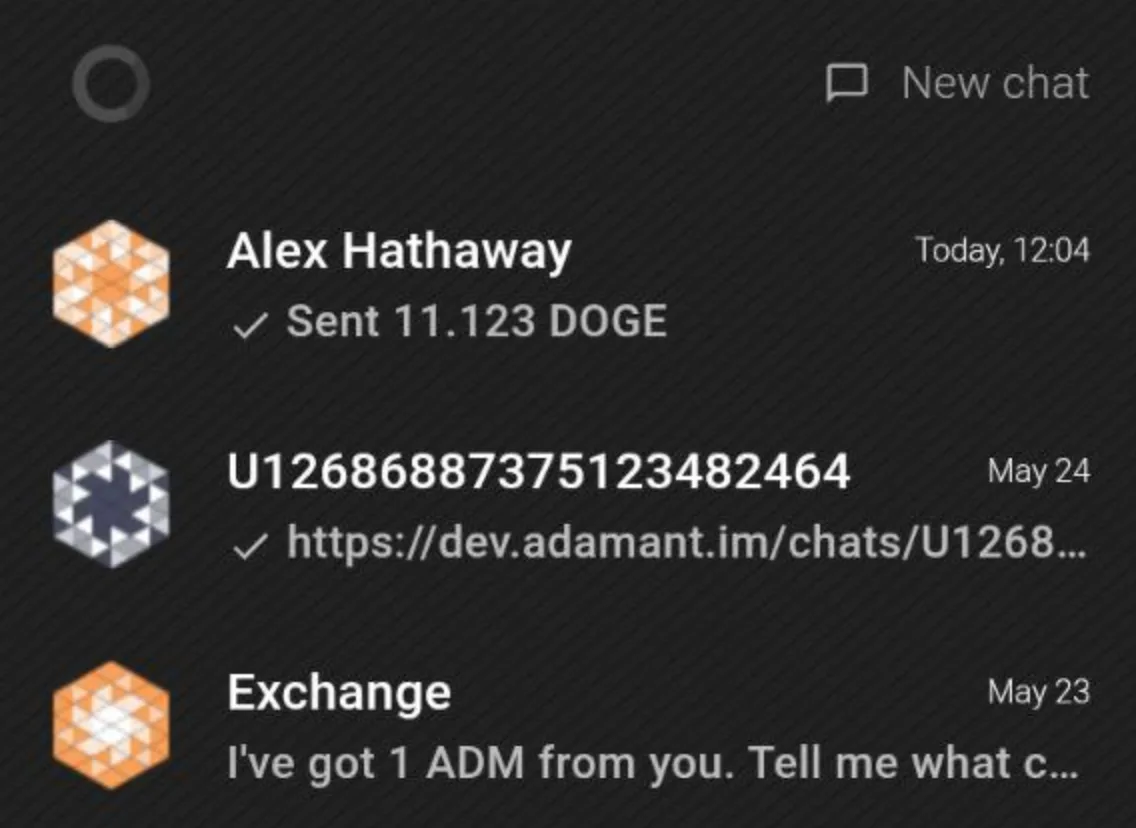
See also: Health Check: General updating spinner
Data Loading Spinner
The data loading spinner covers the chat list spinner, specific chat spinner, and ADM transaction list spinner. It appears for all connection statuses and is shown on user request—for example, when a user enters the ADM transaction list screen, scrolls the chat list to load new chats, enters a specific chat the app does not yet have, scrolls within a specific chat, or enters the Vote for delegates screen. The spinner is shown until data is updated. It is persistent and does not trigger vibration.
Sending a New Message or File
This behavior is common to all connection statuses. If there is no connection, the message appears in-chat with a Pending transaction status. The Pending status switches to Failed based on the timeouts defined in Message sending timeouts. Two timeouts are implemented: one for sending a regular message and one for sending a message with attachments. The attachment timeout refers to sending an ADM message with already uploaded files, not to the file upload itself.
Sending In-chat ADM or Other Crypto
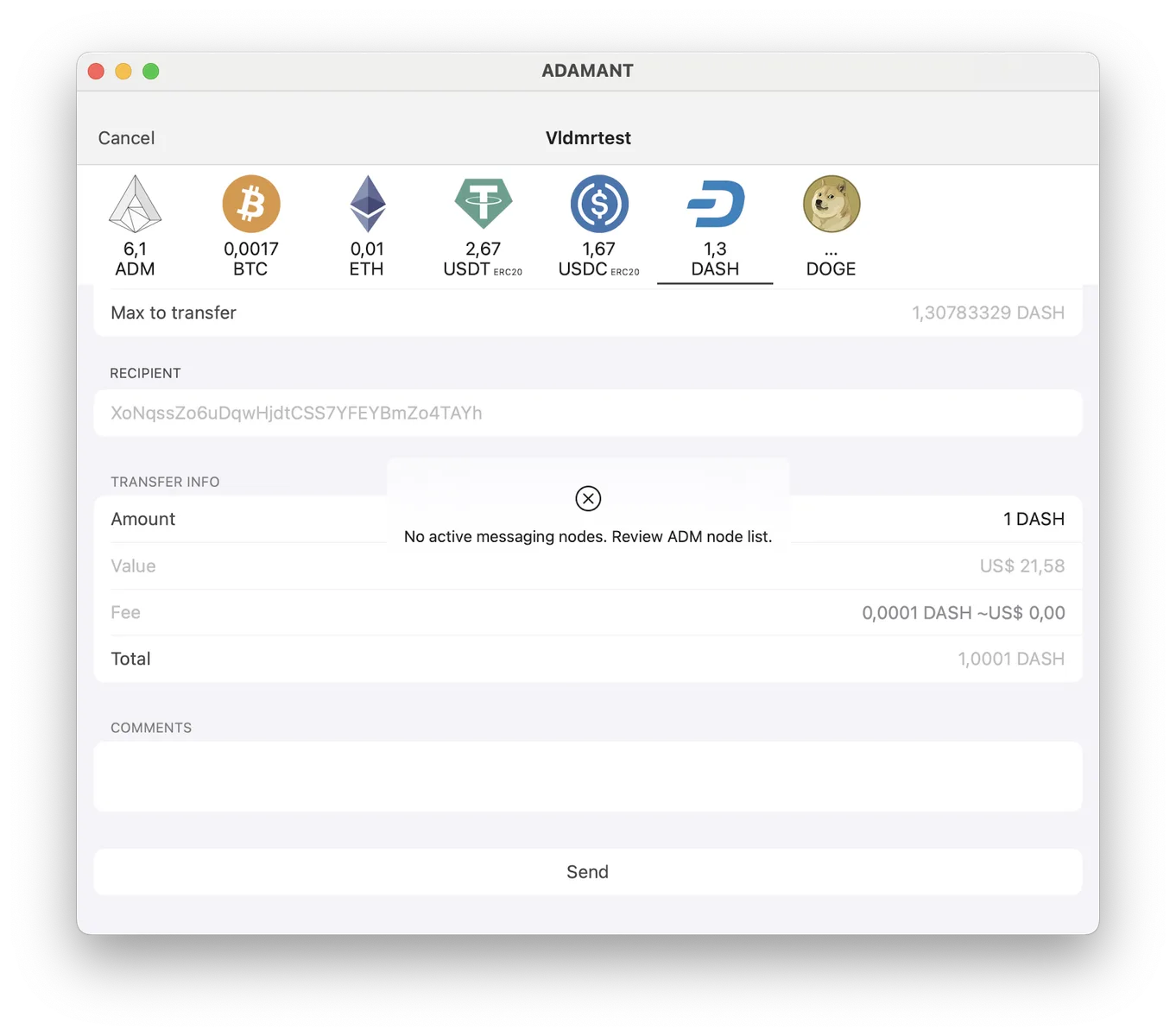
This also applies to sending ADM coins directly. For all connection statuses, sending is prohibited and a temporary snackbar is shown with a warning vibration. For sending non-ADM coins directly (Account → Coin → Send), ADM node availability is not checked for coin transfers.
Starting a New Chat
This behavior is common to all connection statuses. The app verifies locally that the ADM address is probably correct, opens a new chat immediately with no requests, and shows a welcome in-chat special message. If the public key is available locally, no additional messages are shown. If the public key must be requested from a node, an additional in-chat message with a spinner is displayed.
For No enabled ADM nodes, the additional in-chat warning popup is also shown.
On Connection Restore
When the connection is restored, pending requests are finished—for example, pending messages are sent and spinners are updated.
Login with Passphrase
For No internet connection and No active/available ADM nodes, the user stays on the Login screen with a snackbar or popup shown. For No enabled ADM nodes, the user is taken to the ADM nodes screen with a snackbar or popup. The snackbar is temporary and triggers a warning vibration.
Login by Password/Biometrics
This behavior is common to all connection statuses. The user logs in as usual with no delay or requests, and the Chats tab opens. Locally stored messages and chats are shown. The general updating spinner indicates that the data is not current, and a “No connection” snackbar is displayed.