Starting with Windows 10 version 1903 and Windows Server 2019, Microsoft includes WSL 2 (Windows Subsystem for Linux), which lets you run Linux applications on Windows. This means you can run an ADAMANT node on your home computer, including acting as a delegate or running a forging pool.
System requirements
You need Windows 10 x64 (version 1903 / build 18362 or higher) or Windows Server 2019, at least 4 GB of RAM, and 50 GB of disk space. Virtualization Technology must be enabled in your computer’s BIOS before installation.
WSL 2 setup
Follow the official WSL 2 installation guide. If you do not use the Microsoft Store, you can download Ubuntu manually; Ubuntu 16, 18, or 20 are all suitable.
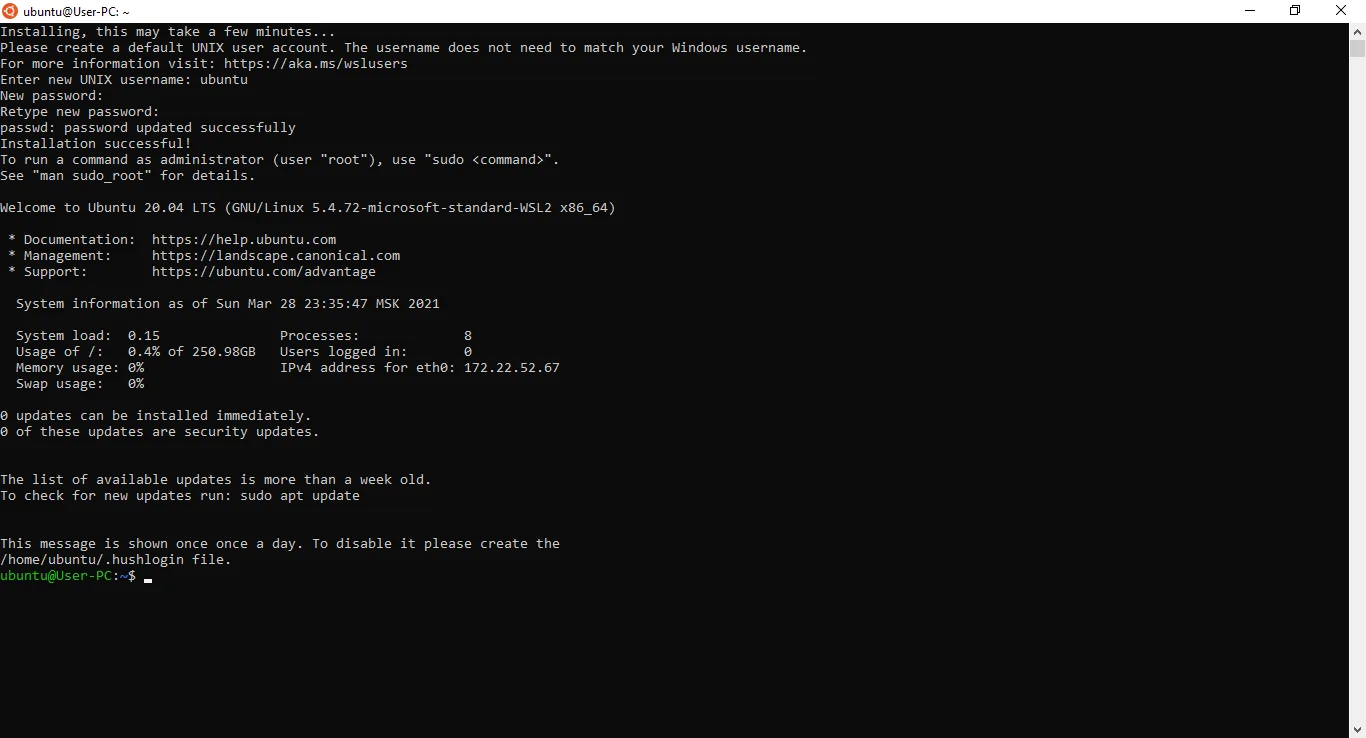
After installation, create a UNIX username and password for the Ubuntu distribution. For example, set the username to ubuntu.
Install the ADAMANT node
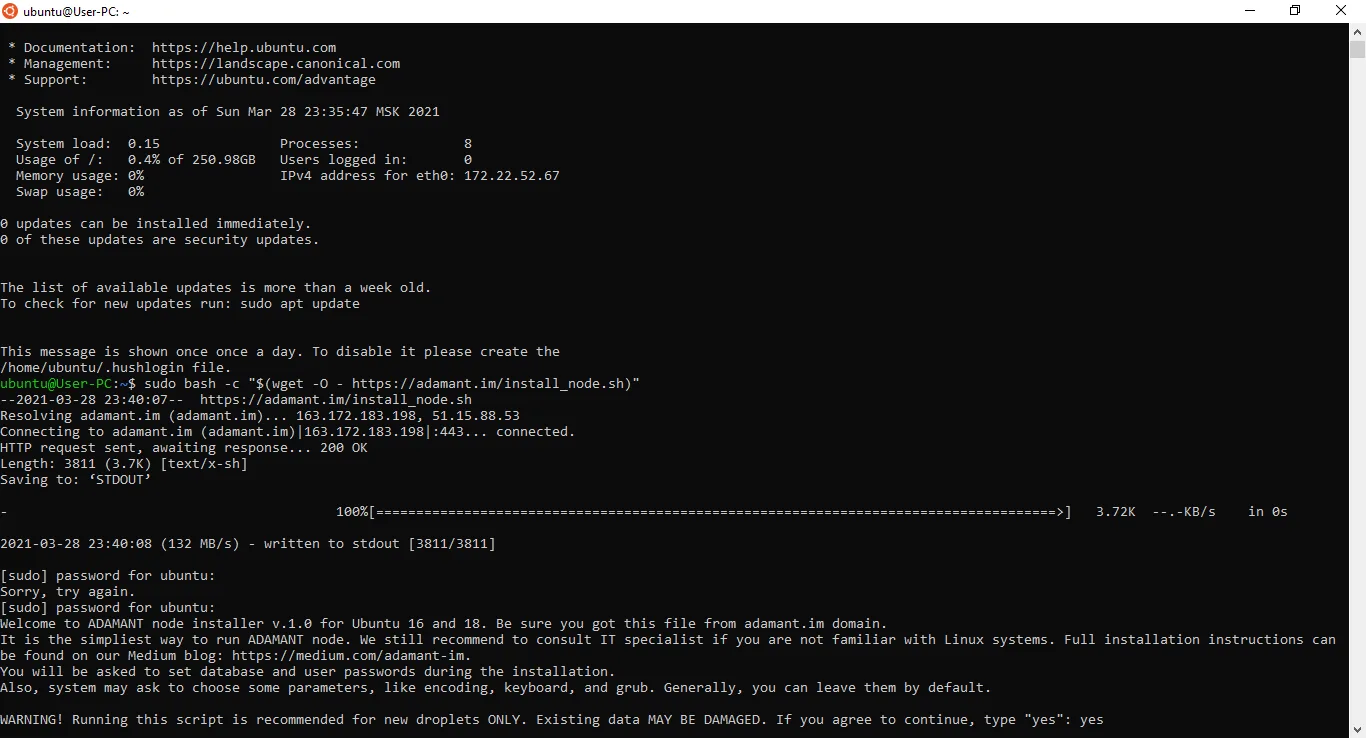
You now have an Ubuntu subsystem running on Windows, which behaves like a virtual machine. Install the ADAMANT node following the standard Ubuntu instructions.
Immediately after installation, the Vmmem (WSL 2) process may consume a lot of RAM because the setup script downloads a fresh blockchain image and the Linux subsystem caches it in memory. Memory consumption drops significantly after a computer restart.
Running the node after a restart
Closing the Ubuntu window does not stop the node; the Linux subsystem continues running in the background. If the computer goes to sleep, the node resumes when it wakes and catches up with the blockchain height. However, after a full computer restart, you must start the node manually.
Open the Ubuntu terminal, or connect from PowerShell:
wslIf you have multiple Linux distributions installed, specify the version:
wsl -d Ubuntu-18.04Once connected, start PostgreSQL, switch to the adamant user, and launch the node:
sudo service postgresql start
su - adamant
cd /home/adamant/adamant && pm2 start --name adamant app.js
Verify the node is running and gaining height:
curl http://localhost:36666/api/blocks/getHeightIt takes some time for the node to catch up with the current blockchain height. You can configure autostart on reboot if you have system administration knowledge; see this Ask Ubuntu answer for guidance.
Accessing the API
From both the Ubuntu terminal and Windows, you can reach the node’s API via localhost. Open a browser to http://localhost:36666/api/blocks/getHeight. Accessing the API from another computer requires additional network configuration.