Note: The Docker image may be outdated; running an ADAMANT node on an Ubuntu server is recommended instead. ADAMANT uses Delegated Proof of Stake (dPoS) for blockchain consensus, and running your own node enhances network decentralization.
This guide explains how to install, run, and update an ADAMANT node on Windows, macOS, or Linux using Docker. The example uses Windows 10, which requires a 64-bit version of Windows 10 Pro, Enterprise, or Education (Build 14393 or later). The host machine should have at least 4 GB of RAM and 50 GB of free disk space, depending on the current block height.
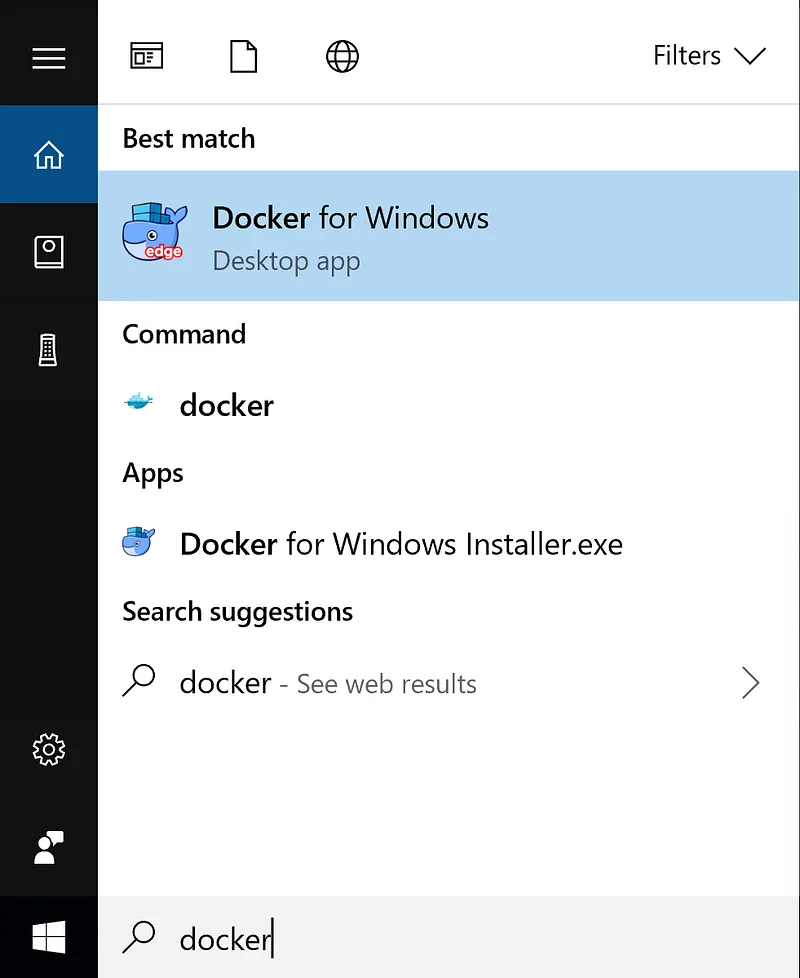
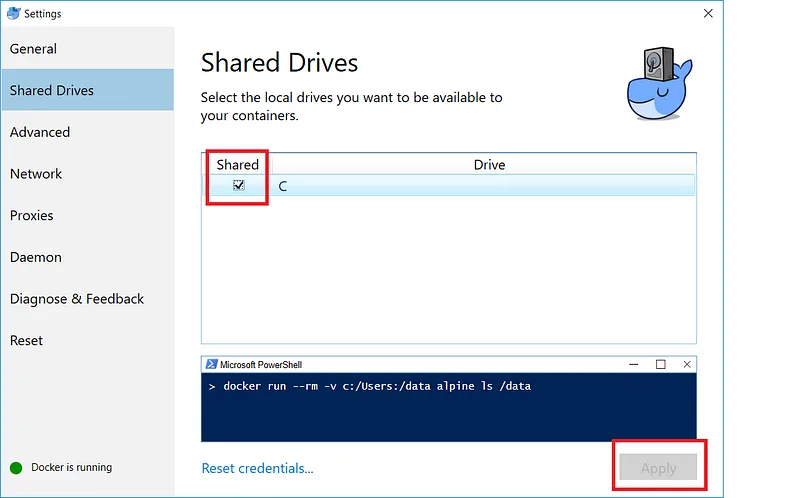
To install Docker, download the free Docker Community Edition and run the installer. Follow the wizard to accept the license and authorize the installer with your system password, which is needed for networking components and Hyper-V VMs. After installation, start Docker from the Start menu. Once the whale icon in the status bar becomes steady, Docker is running. You must also share your local drive with Docker by right-clicking the status bar icon, selecting Settings, checking the shared drive checkbox, and applying the changes.

To install the ADAMANT node, first install a Git client using the default options. Open Microsoft PowerShell and clone the repository:
git clone https://github.com/Adamant-im/adamant-docker
cd adamant-docker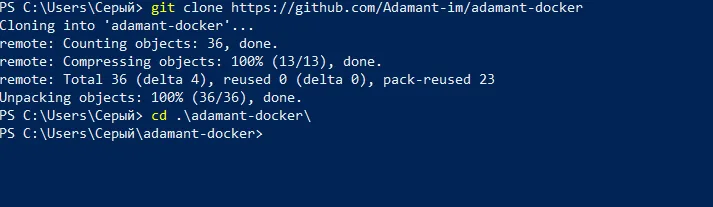
To run the node, pull the necessary Docker images:
docker-compose pull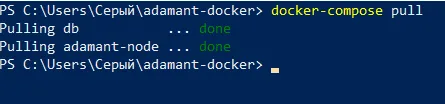
Start the database service and verify it launched successfully:
docker-compose up -d db
docker-compose logs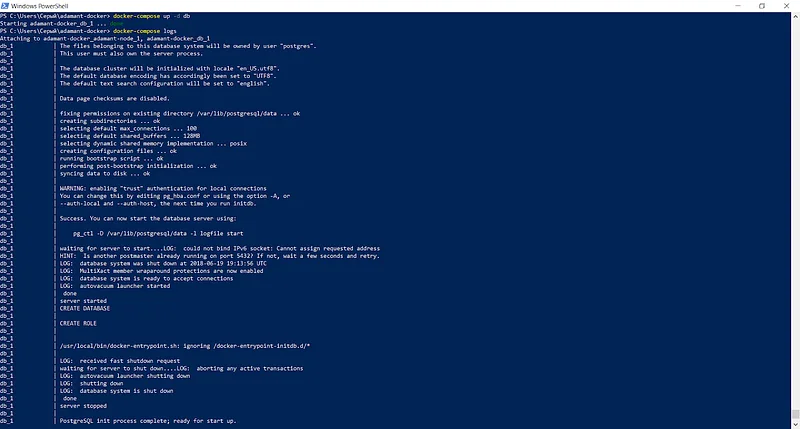
Next, start the adamant-node service and check the logs to confirm a successful start:
docker-compose up -d adamant-node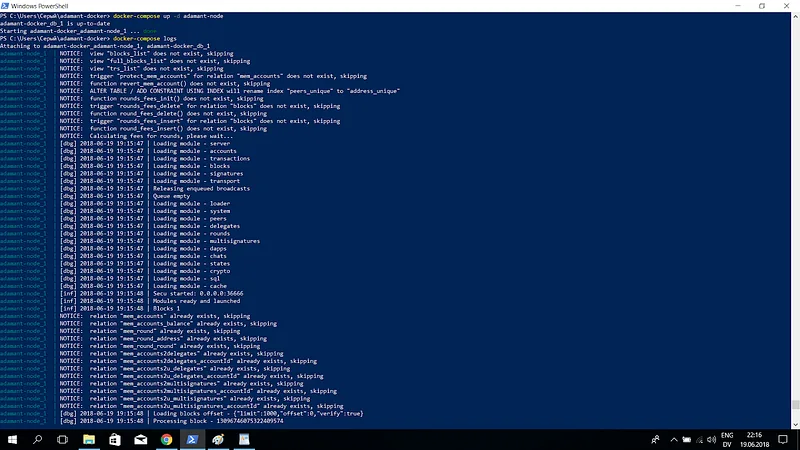
You can stop all running services with docker-compose stop and restart them later using docker-compose start.
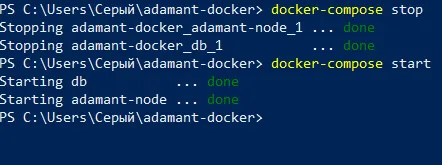
Validate the installation by checking the node application log:
docker-compose logs --tail=10 adamant-node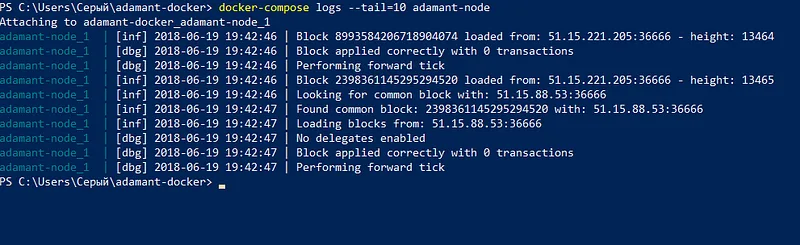
The --tail=10 argument limits the output to the last 10 log lines. To verify the node is connected to the ADAMANT blockchain, visit the ADAMANT network monitor and find your node by its IP address. It may take a few minutes for your node to appear. A newly installed node will show a block height of 1 as it synchronizes, which can take up to a day depending on your connection and CPU.
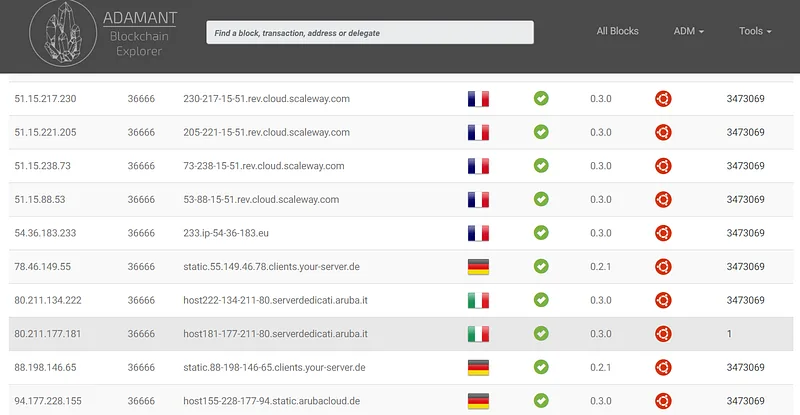
To check the height directly, get the container ID using docker ps, then query the node’s API:
docker ps
docker exec <container_id> curl -k -X GET http://localhost:36666/api/blocks/getHeight
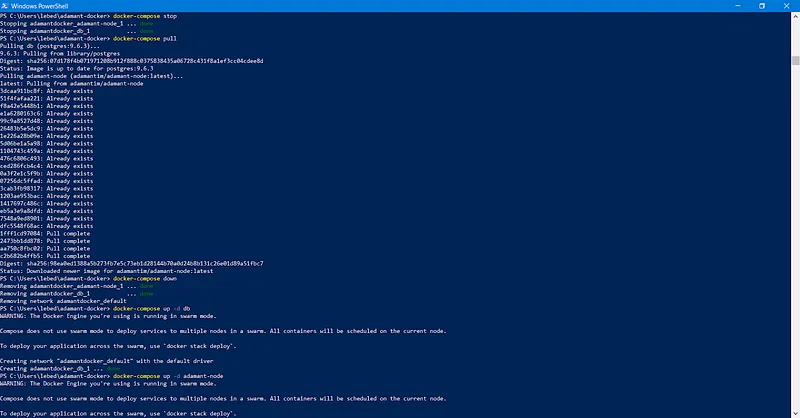
When the sync completes, the height will match other nodes on the network. To update the ADAMANT node, open PowerShell and run the following commands:
cd adamant-docker
docker-compose stop
docker-compose pull
docker-compose down
docker-compose up -d db
docker-compose up -d adamant-node